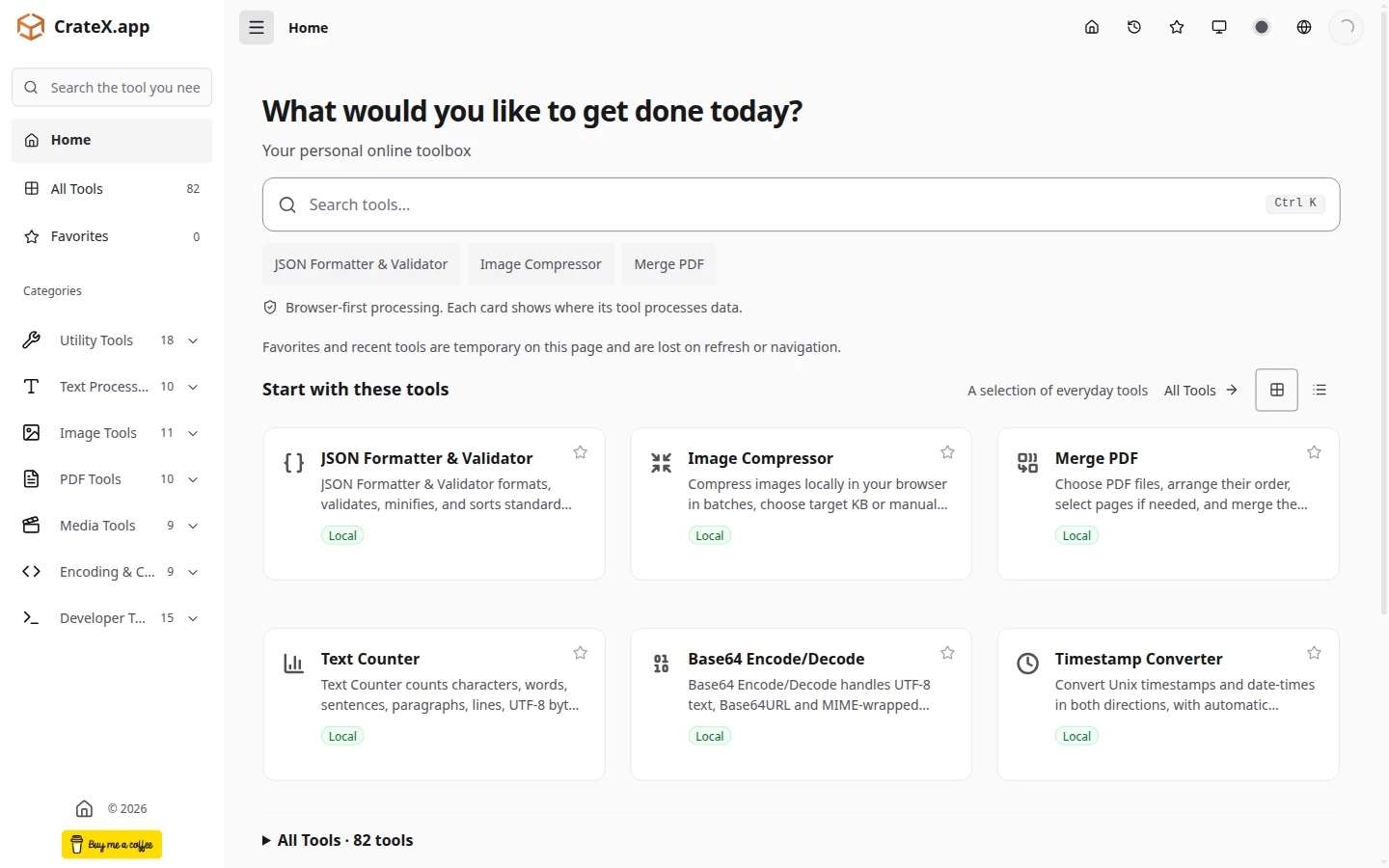
Move the mouse onto a tool card. Read the expanded description. Move away, and the card closes.
That was the interaction we were refining on CrateX.app, my browser-first online toolbox. It became a surprisingly difficult debugging problem: simulated mouse movement could open the cards, while the user’s actual movement in Chrome often did nothing.
Our AI-assisted debugging workflow kept finding successful test paths. The user kept reporting a broken interaction.
Then the user tried Firefox and reported that hover worked.
The mouse was moving. Chrome was reporting most movements as pen. Our mouse-only handler was ignoring those events.
The useful question was no longer whether the card could open. It was whether the test and the user were sending the same kind of input.
First, Check What the Page Receives
If hover works in automation but fails during actual use, record the events before adjusting another animation duration.
This small browser-console probe logs input type and buttons without recording coordinates, tool contents, or account data:
const hoverProbe = new AbortController();

document.addEventListener("pointermove", (event) => {
  console.log({
    pointerType: event.pointerType,
    pointerId: event.pointerId,
    buttons: event.buttons,
    isTrusted: event.isTrusted,
  });
}, { capture: true, signal: hoverProbe.signal });

// Move your actual pointer over the affected control.
// Run this when finished:
// hoverProbe.abort();
Do this in the affected browser, not just in an automated browser session. Avoid leaving a high-frequency logger running indefinitely.
The standard Pointer Events types include mouse, pen, and touch; an empty string means the browser could not identify the type. Other device types can use vendor-prefixed values. A pen can hover on hardware that supports it. A touch contact is not interchangeable with hover.
The Guard That Ignored the Mouse
The homepage had a mouse-only check equivalent to this:
if (event.pointerType !== "mouse") return;When we inspected the retained recording from the user’s Chrome session, 95 of 96 recorded pointer movements were labeled pen. Only one was labeled mouse.
In one sample, the pointer was over image-compressor, but the active card was still json-formatter. The recorder tracked the event’s target card and the card carrying the active marker. The mismatch was a concrete trace of the user’s complaint about moving between cards.
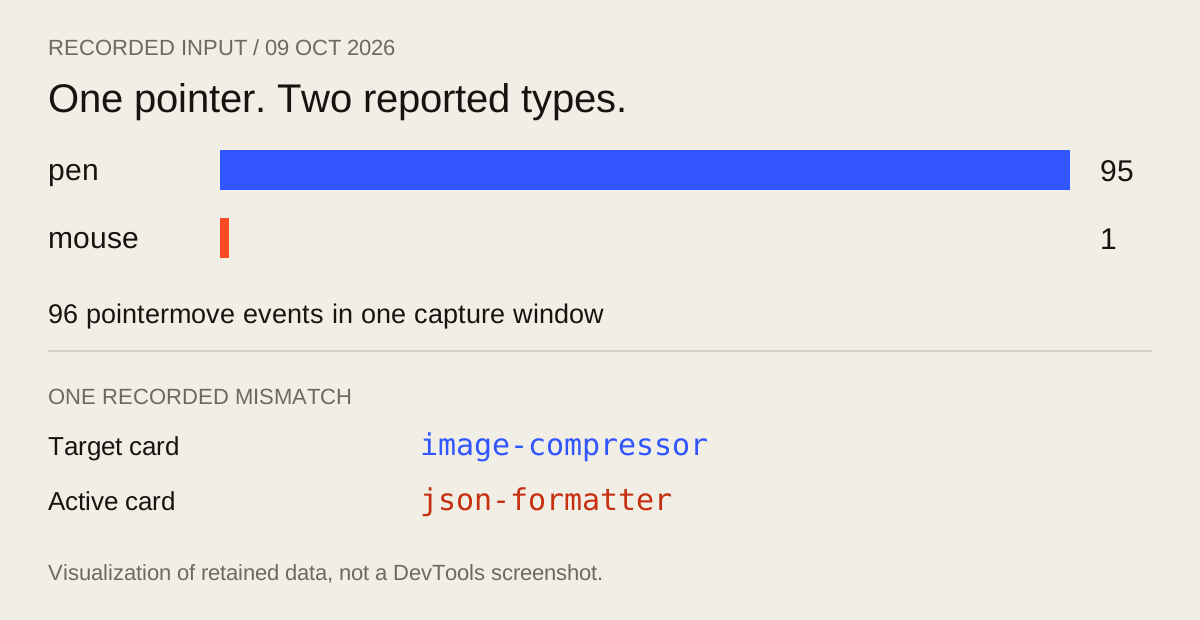
For those pen events, the page was not waiting for a long hover delay. The mouse-only handler returned without processing them.
Fix the Interaction, Not the Device Label
For our homepage, the practical policy was to exclude touch from the hover path, rather than exclude everything that was not mouse:
function handlePointerEnter(event) {
  if (event.pointerType === "touch") return;
  openPreview();
}

function handlePointerLeave(event) {
  if (event.pointerType === "touch") return;
  closePreview();
}
This is a simplified policy example, not the complete card implementation. It accepts mouse and pen, and does not reject unknown pointer types solely for their label. A component with device-specific requirements may need a narrower policy.
Touch remained on a separate interaction path; keyboard focus also needed to work independently. We did not globally rewrite pen events as mouse. Doing so could erase meaningful information from a real stylus and interfere with unrelated controls.
This corrected one failure mode, not every hover problem. Earlier changes also addressed animation timing, hit areas that did not follow the expanded surface, and stale inline styles after a view change. Those issues needed separate verification.
An expanded card must keep its interactive hit area aligned with its visible surface. Moving from its description to its favorite button should not make it collapse; moving to another card should transfer the preview; leaving should close it.
Recognizing the event is necessary. It is not sufficient to make the whole interaction correct.
The Test Was Right About the Input It Sent
Our automated paths repeatedly demonstrated that a simulated mouse could open the cards. Playwright’s mouse API models mouse input; Chromium’s mouse-event dispatch protocol defaults its pointer type to mouse and also supports pen.
That is useful coverage. It is not coverage of every event stream a physical mouse can produce through an operating system, virtual device, and browser.
Nor does isTrusted: true tell us that a human or a particular physical device generated an event. Browser automation can produce trusted events too.
Testing more cards with the same input type would not discover this particular gap.
The regression plan therefore needed separate questions:
- Mouse and pen: Does each non-touch hover path open, transfer, and close the preview?
- Mixed input: Does switching between mouse- and pen-labeled events leave stale state?
- Inside the card: Do the title, description, icon, and favorite control stay within the active hit area?
- Touch and keyboard: Does touch retain its intended behavior, and does keyboard focus work without hover?
- Layout history: After opening and closing, does switching between card and list views restore the correct geometry?
- Actual browser session: Do events recorded during the user’s operation match the assumptions made by the tests?
A handler test can prove the filtering policy. Browser tests can exercise geometry and state transitions. An actual-input recording can reveal what arrives from the affected environment. These are different pieces of evidence, and their results should be reported separately.
Why a VMware Mouse Could Look Like a Pen
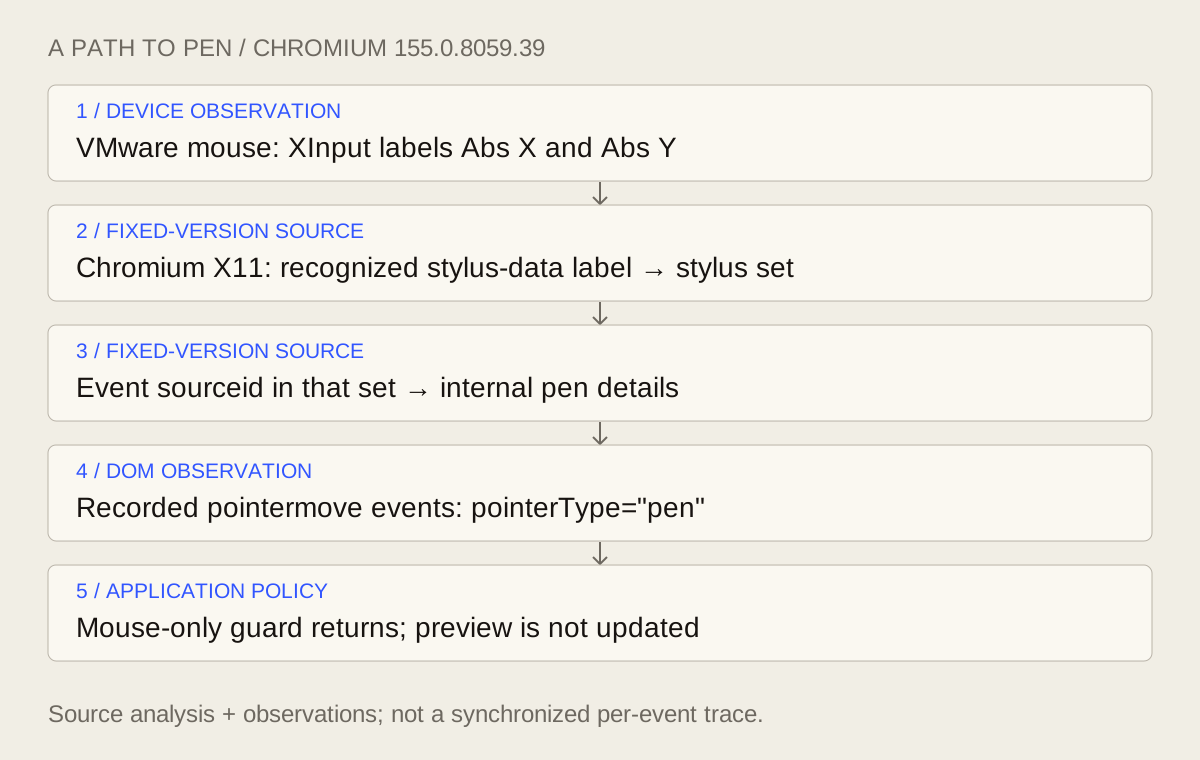
The short explanation: the Chromium X11 code we inspected uses certain input-axis labels as clues for stylus input. This virtual mouse exposed matching labels—even though Xorg classified it as a mouse. The browser and the operating system could disagree without the user plugging in a stylus.
Our affected environment was a VMware Linux guest using X11 and Cinnamon, with Google Chrome 155.0.8059.39 and Linux 6.12.111+deb13-amd64. XInput exposed relative and absolute VMware mouse devices; the absolute VirtualPS/2 VMware VMMouse had axes named Abs X and Abs Y.
Those labels matter more than the word absolute. Linux’s VMware mouse driver deliberately supports absolute positioning for virtual-machine mouse integration. Absolute input is not, by itself, evidence of a pen.
The Source Path, Step by Step
A valuator describes an axis reported by a device. A source ID identifies the device that originated an XInput event. With those two terms, the classification path is easier to follow:
- Recognize a label. With XInput2 available, the pinned X11 device manager examines
SlavePointerandFloatingSlavedevices. Finding any recognized stylus-data valuator—includingAbs XorAbs Y—adds the device ID to the stylus set. Pressure or tilt is not an additional requirement. - Classify the event. The classifier checks an event’s source ID against that set. The event conversion assigns pen pointer details to input identified as stylus input.
- Expose the result to the page. Blink’s pointer-event factory maps pen pointer details to the DOM string
"pen".
Other Developers Had Already Found the Same Trap
This was not a new class of failure.
In a 2022 Floating UI report, a developer found mouse on an initial test and pen on subsequent tests. Hover delay and resting-time behavior were affected. The maintainer recommended checking for both mouse and pen, rather than insisting on mouse alone.
The related Mantine discussion records that upgrading @floating-ui/react-dom-interactions to 0.13.3 resolved the reporter’s problem. That was an application-library compatibility fix, not proof of an upstream browser fix.
The consequences can extend beyond hover. An OpenLayers investigation described a VMware CentOS guest in which pointer movement changed to pen with a different pointer ID after a mouse press. A map could then lose track of the pointer that started a drag.
Those reports do not prove our machine had an identical cause. They do show why examining input type and ID was a better next step than another round of animation tuning.
What This Evidence Does—and Doesn’t—Prove
The device information, fixed-version source, and DOM recording form a strong explanation for this environment. Three limits keep that explanation from becoming a broader claim:
- The recording: The user moved the pointer during a capture window in which we issued no simulated movement. We independently checked the counts and illustrated mismatch against the original log, not every exported event. The public JSON matches the retained runtime export; the original full-event tool output was truncated.
- The path: We did not simultaneously align individual XInput events with individual DOM events. This is not proof of every event’s origin, or a claim about all absolute devices, VMware guests, or Chrome versions. The relevant heuristic matches axis labels, not merely absolute axes.
- Extensions: We did not perform an extension-disabled comparison. We cannot attribute the failure to an extension. The community library fix discussed above is not evidence of an upstream browser fix.
When the User and the Test Disagree
We should have investigated the input difference sooner. Repeatedly demonstrating the same successful mouse path did not answer the user’s report. The Firefox comparison was a diagnostic clue, not a reason to ask the user to change browsers permanently.
The lasting correction was not just replacing a guard. It was changing the question from “Can I make this card open?” to “What reaches this handler when the user tries?”
A passing test describes the case it exercised. It does not invalidate a failure it never reproduced.
That lesson applies to menus, tooltips, canvas interactions, and drag handles as much as to a homepage card. Next time, use this order:
- Observe the actual events in the browser where the user encounters the failure.
- Check the filter before changing another animation duration.
- Test the transition—opening, moving within the control, transferring to another, and closing—not just one successful opening.
The tool cards in this investigation belong to CrateX.app. Try the toolbox, or apply the input checks above to a hover interaction of your own.
Comments
No account is needed to read. Sign in with GitHub to leave a comment.
Loading comments connects to Giscus and GitHub. Privacy details