Tested on August 25, 2026
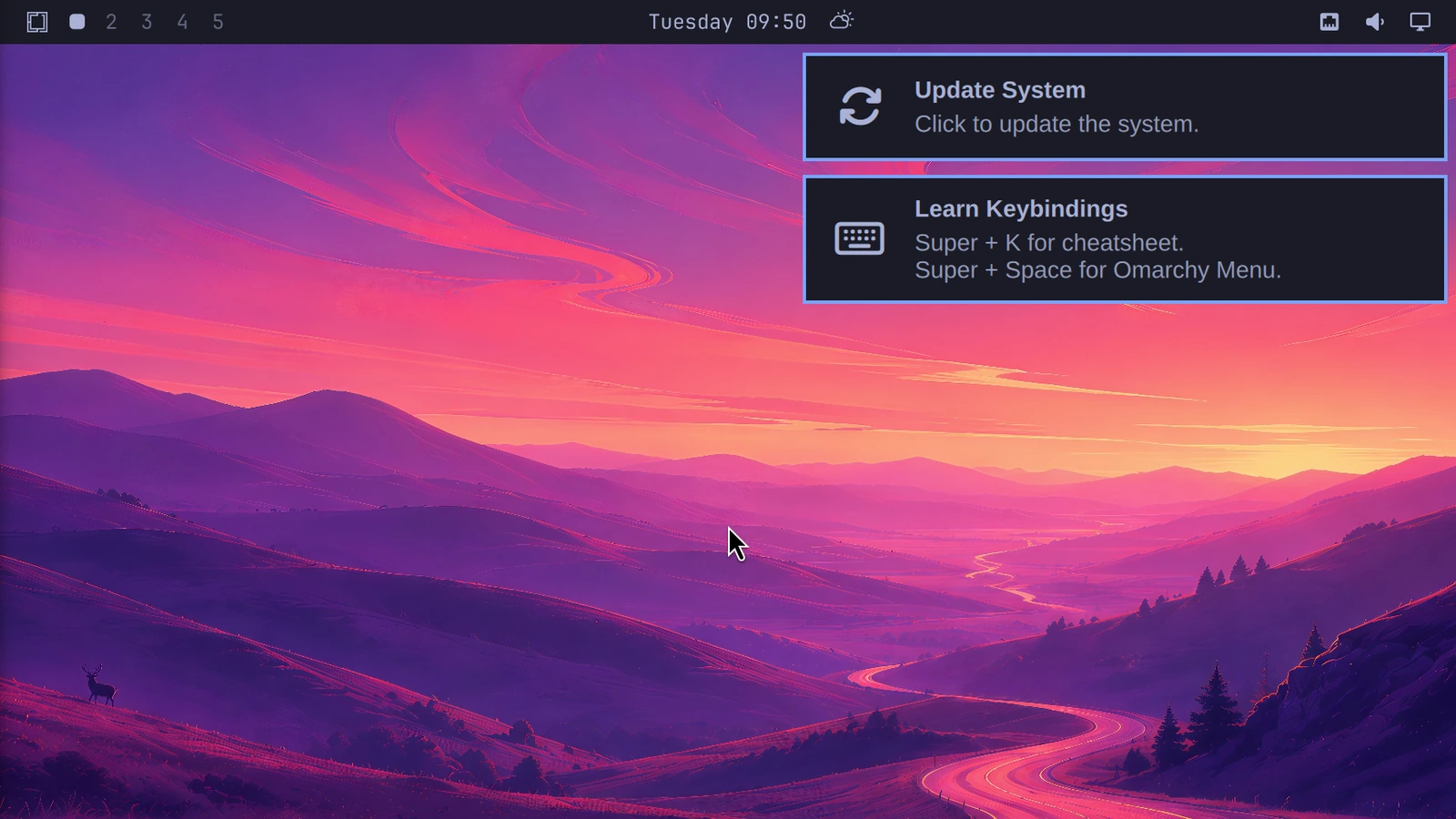
Omarchy 4 had booted. Hyprland was alive. The desktop was still black.
After login, VMware showed only a black background and an oversized cursor. There was no top bar, no launcher, and no visible Omarchy shell.
But Super + Enter still opened a terminal.
That one detail changed the entire investigation.
It meant the compositor was running, keybindings were being processed, and windows could still be created. This was not simply a case of Hyprland never starting.
The missing layer was Omarchy’s Quickshell-based desktop shell.
Start Here: The 30-Second Test
Before changing monitor settings, reinstalling Omarchy, or disabling VMware 3D acceleration, run this from a terminal:
LIBGL_ALWAYS_SOFTWARE=1 \
quickshell -p "$OMARCHY_PATH/shell"
If the Omarchy bar appears and Quickshell stays alive, this article is likely describing the same class of failure.
If you only need the persistent workaround, skip to Making the Workaround Persistent. Continue below for the diagnosis and evidence.
If it still crashes, stop here: your black screen may have a different cause.
The Exact Setup I Tested
- Host: Windows 11 25H2
- VMware: Workstation Pro 26H1, build 25388281
- VMware 3D acceleration: Enabled
- VM hardware: 8 GB RAM, 16 vCPUs, 60 GB SCSI disk
- Guest: Omarchy 4 / Quattro
- Installation: Official 4.0.0 ISO, followed by Omarchy Update
- Guest tools:
open-vm-toolsinstalled - Virtual GPU: VMware SVGA II Adapter
- Kernel driver:
vmwgfx - Session: Hyprland on Wayland
That is why one process crashing can leave Hyprland responsive while the desktop looks almost completely empty.
The First Useful Error
I checked whether Quickshell was healthy:
pgrep -af quickshellThere was no stable long-running shell process.
So I started the Omarchy shell in the foreground:
quickshell -p "$OMARCHY_PATH/shell"The QML configuration loaded:
Launching config: "/usr/share/omarchy/shell/shell.qml"
Configuration loaded
Then Quickshell died:
The Wayland connection experienced a fatal error: Invalid argument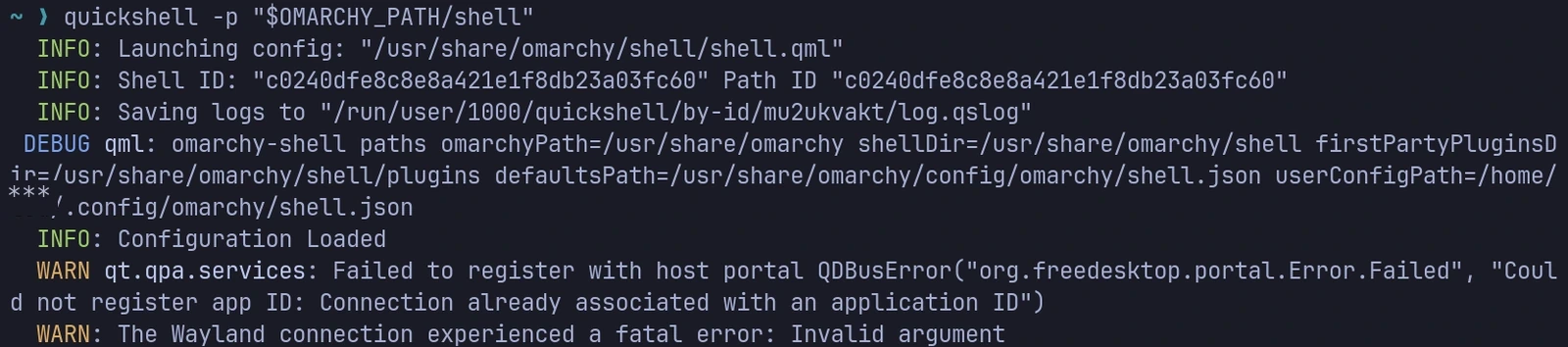
A portal-registration warning appeared earlier in the output, but Quickshell continued loading past it. The process actually terminated at the Wayland error.
The journal also showed that Omarchy’s launcher was already starting the shell, watching it exit, and relaunching it.
So this was not an autostart problem.
The official startup chain was working. The child process was crashing.
At the time of testing, Omarchy’s default Hyprland autostart executed omarchy-launch-shell. The launcher starts Quickshell under the omarchy-shell journal tag and attempts to relaunch it after non-zero exits while Hyprland remains available. The Quickshell portion of the launch command was:
quickshell -n -p "$OMARCHY_PATH/shell"The launcher’s restart behavior can be seen in the script version tested here.
Changing the Obvious Display Settings Did Not Help
Hyprland identified the VMware output as:
Virtual-1The VM initially used a dynamically selected VMware resolution at a scale factor of 2, so I temporarily forced a standard 1920×1080 mode and tested:
scale 1
scale 1.25
scale 2
Quickshell failed in exactly the same way every time:
The Wayland connection experienced a fatal error: Invalid argumentThis did not prove the virtual display was irrelevant, but it showed that the failure was not confined to the original resolution-and-scale combination in this VM.
The VMware Graphics Path Became the Main Suspect
The guest reported:
VMware SVGA II Adapter
Kernel driver in use: vmwgfx
Kernel modules: vmwgfx
The session was native Wayland:
XDG_SESSION_TYPE=wayland
WAYLAND_DISPLAY=wayland-1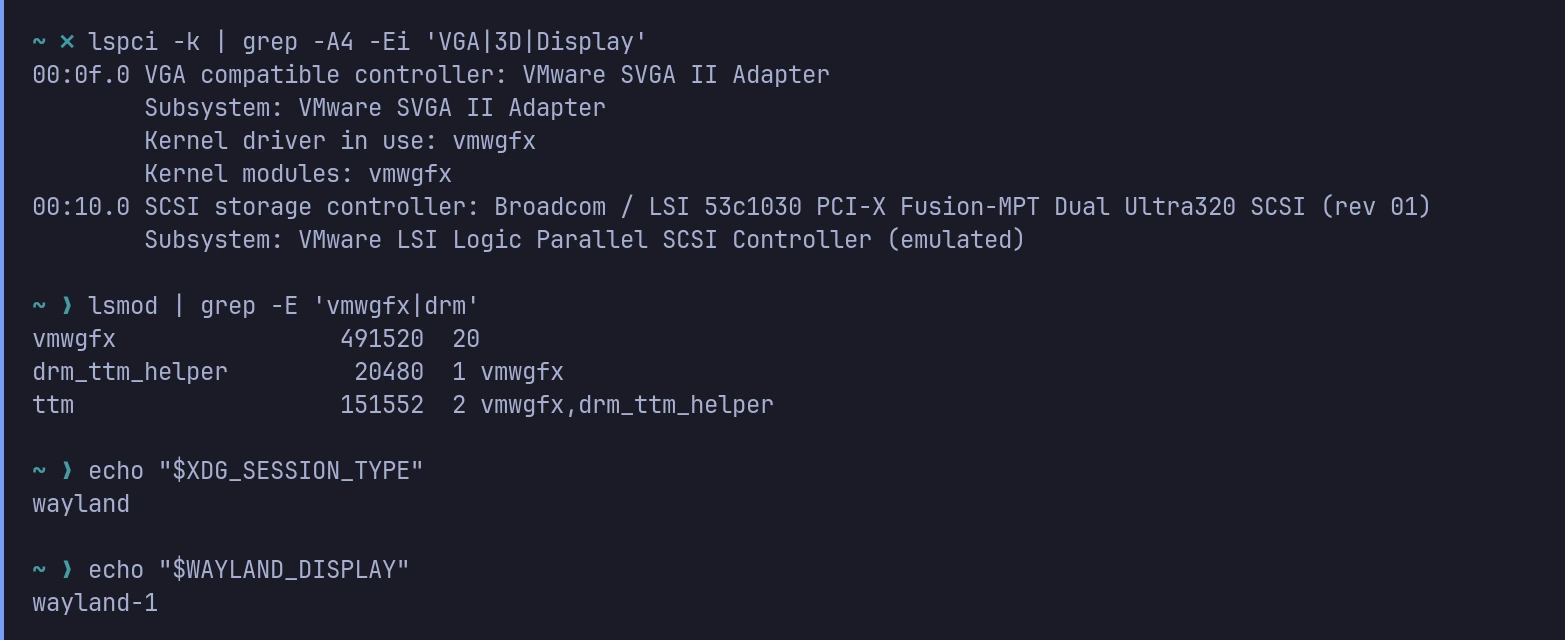
vmwgfx in a native Wayland session.At this point, the leading hypothesis was an interaction among Quickshell/Qt, Mesa, Hyprland, and VMware’s graphics stack.
But “something in the graphics stack” was still too vague.
I wanted to see the exact Wayland request that failed.
WAYLAND_DEBUG Located the Failing Request
I launched Quickshell with Wayland protocol tracing enabled:
WAYLAND_DEBUG=1 \
quickshell -p "$OMARCHY_PATH/shell" \
> /tmp/qs-wayland.log 2>&1
Then I filtered the relevant end of the log:
grep -nEi \
'error|invalid|attach|buffer|dmabuf|surface' \
/tmp/qs-wayland.log | tail -50
The important sequence was:
zwp_linux_dmabuf_v1.create_params(...)
zwp_linux_buffer_params_v1.create_immed(...)

wl_surface.attach(wl_buffer, 0, 0)
wl_surface.commit()

wl_display.error(
  ...,
  "invalid arguments for wl_surface.attach"
)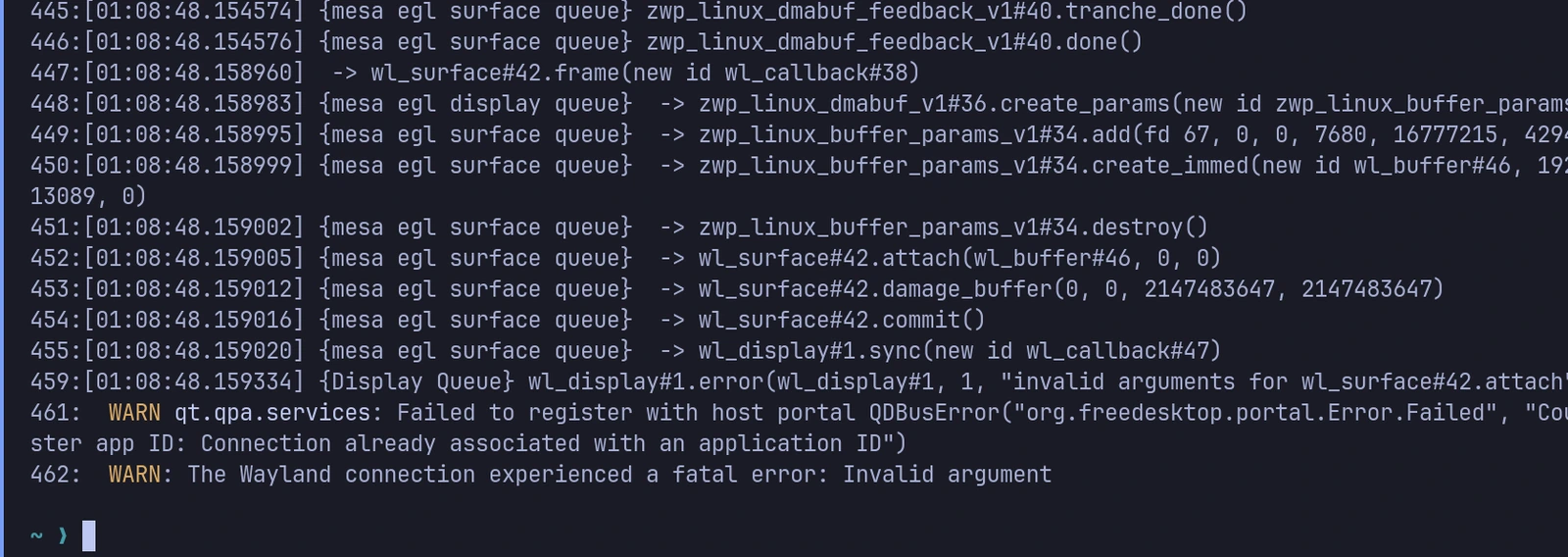
wl_surface.attach, after which the compositor returns an “invalid arguments” error.This was the turning point.
Loading the QML configuration was not the fatal step. The Wayland connection died after Quickshell attempted to attach a dma-buf-backed buffer to a surface.
I am deliberately not assigning the bug to one component.
This trace alone does not prove whether the invalid combination originated in:
- VMware SVGA or
vmwgfx - Mesa
- QtWayland or Quickshell
- Hyprland’s buffer validation
- an interaction among several of these components
But the error pattern is not unique to this VM.
A Hyprland issue from another VMware guest contains an almost identical sequence: linux-dmabuf buffer creation, wl_surface.attach, and Error 22 (Invalid argument).
A later Hyprland discussion covers VMware Workstation with 3D acceleration enabled and the vmwgfx driver. It reports that native Wayland terminals fail under Hyprland with the same attach error but work under other compositors.
Those upstream reports do not prove that all of these cases have the same root cause.
They do, however, strongly support investigating graphics-stack compatibility before treating this as a typo in Omarchy’s QML or a missing startup command.
The One-Variable A/B Test
Normal launch — failing path
quickshell -p "$OMARCHY_PATH/shell"Result:
The Wayland connection experienced a fatal error: Invalid argumentSoftware-rendered launch — successful path
LIBGL_ALWAYS_SOFTWARE=1 \
quickshell -p "$OMARCHY_PATH/shell"
Result:
The Omarchy bar appeared immediately, and Quickshell stayed alive.
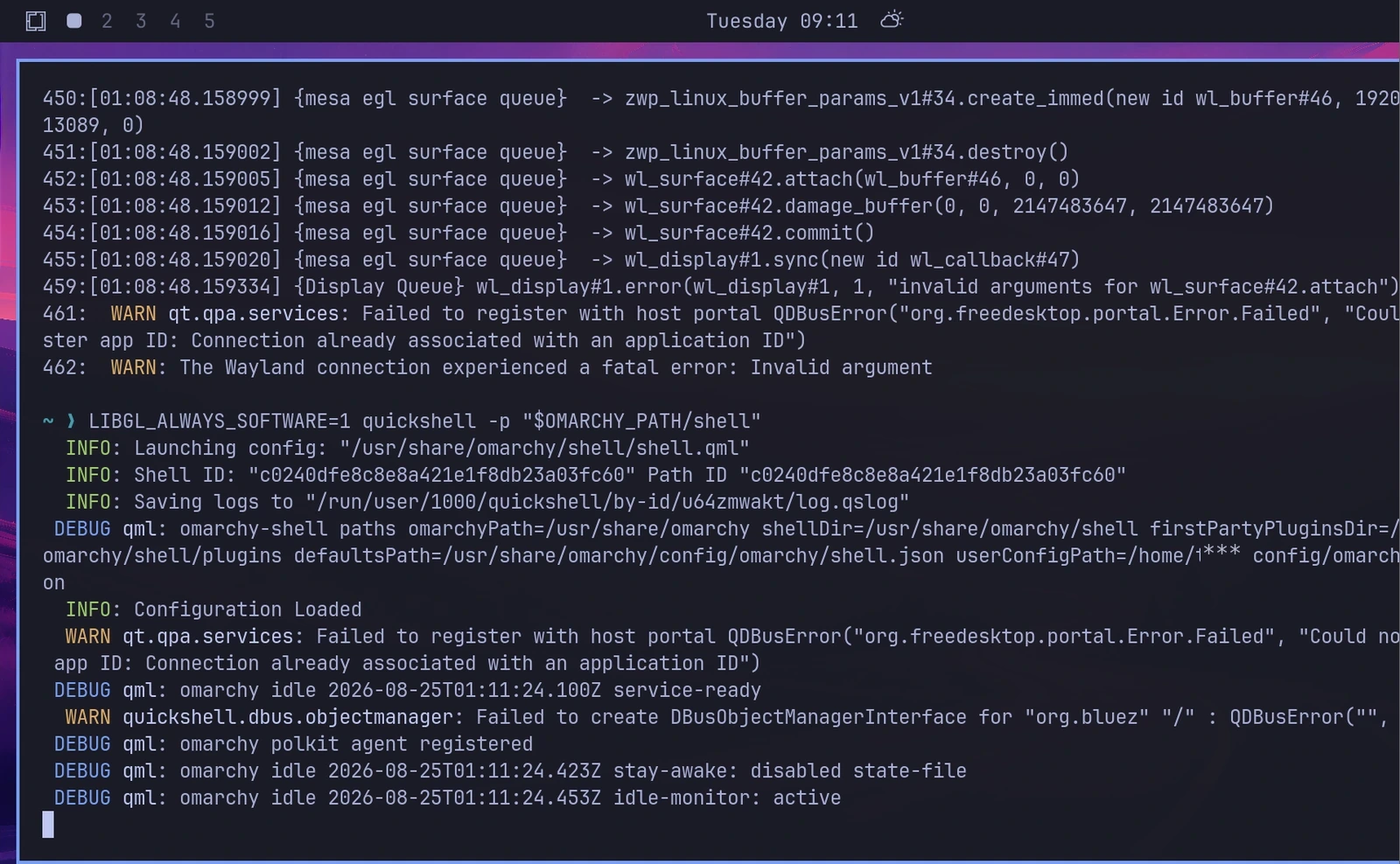
Mesa documents LIBGL_ALWAYS_SOFTWARE as forcing software rendering.
I did not prove that the successful path stopped using linux-dmabuf entirely, nor did I isolate a specific format or modifier mismatch.
The defensible conclusion is narrower:
Forcing Mesa software rendering avoided the failing buffer-attachment behavior in this VM.
VMware 3D acceleration remained enabled for the virtual machine.
Making the Workaround Persistent—Without Editing Omarchy’s Files
Before making this persistent, confirm that the one-off command keeps Quickshell alive. For a higher-confidence match, compare the five diagnostic checks.
Setting LIBGL_ALWAYS_SOFTWARE=1 globally would be easier, but it could force unrelated OpenGL applications in the Hyprland session to use software rendering too.
Instead, I scoped it to the Omarchy shell launcher’s process tree. This avoids changing the entire Hyprland session, but applications launched as descendants of Quickshell may still inherit the variable.
At the time of testing, Omarchy’s autostart ran omarchy-launch-shell through PATH. Omarchy also placed its own bin directory at the front of PATH, so a wrapper with the same name in ordinary ~/.local/bin was not selected in my installation.
That PATH behavior is visible in the Hyprland environment configuration from the test date.
The solution was a dedicated wrapper directory prepended to the user-level PATH.
Step 1 — Create the Wrapper
mkdir -p ~/.local/omarchy-workarounds/bin

cat > ~/.local/omarchy-workarounds/bin/omarchy-launch-shell <<'EOF'
#!/usr/bin/env bash
set -euo pipefail

export LIBGL_ALWAYS_SOFTWARE=1

exec "${OMARCHY_PATH:-/usr/share/omarchy}/bin/omarchy-launch-shell" "$@"
EOF

chmod +x \
  ~/.local/omarchy-workarounds/bin/omarchy-launch-shell
The wrapper sets one environment variable and then hands control back to Omarchy’s official launcher.
Do not edit this file directly:
/usr/share/omarchy/bin/omarchy-launch-shellIt belongs to the Omarchy package and may be replaced by an update.
Step 2 — Put the Wrapper Before Omarchy’s Bin Directory
Open:
~/.config/hypr/hyprland.luaImmediately after:
require("default.hypr.omarchy")add:
-- VMware workaround: run the Omarchy shell with Mesa software rendering.
local workaround_bin =
  (os.getenv("HOME") or "") .. "/.local/omarchy-workarounds/bin"

local current_path =
  os.getenv("PATH") or "/usr/local/bin:/usr/bin"

local kept = {}

for entry in current_path:gmatch("[^:]+") do
  if entry ~= workaround_bin then
    table.insert(kept, entry)
  end
end

table.insert(kept, 1, workaround_bin)
hl.env("PATH", table.concat(kept, ":"))
This block removes any existing copy of the directory before putting it first, so repeated configuration reloads do not keep duplicating the same PATH entry.
It leaves Omarchy’s official autostart, journal integration, and shell-restart supervision intact.
Step 3 — Reboot and Verify
rebootAfter login, the bar, wallpaper, notifications, and shell UI appeared automatically.
No manual Quickshell command was needed.
To confirm that the running shell inherited the variable:
pid=$(pgrep -f 'quickshell.*omarchy/shell' | head -n1)

tr '\0' '\n' < "/proc/$pid/environ" |
  grep '^LIBGL_ALWAYS_SOFTWARE=1$'
Expected output:
LIBGL_ALWAYS_SOFTWARE=1To check that Quickshell is not repeatedly dying and being relaunched:
pid1=$(pgrep -f 'quickshell.*omarchy/shell' | head -n1)
sleep 10
pid2=$(pgrep -f 'quickshell.*omarchy/shell' | head -n1)

printf '%s -> %s\n' "$pid1" "$pid2"
Both PIDs should be nonempty and identical. If they are, Quickshell did not restart during this 10-second interval.
You can also inspect the current boot’s shell journal:
journalctl --user -b -t omarchy-shell --no-pager |
  tail -50
What This Workaround Proves—and What It Does Not
It does show that:
- Hyprland was running despite the black desktop.
- Omarchy’s QML configuration loaded.
- Quickshell died during a Wayland buffer-attachment sequence.
- Changing only
LIBGL_ALWAYS_SOFTWAREmade the shell stay alive. - The workaround survived a full reboot in this setup.
It does not prove that:
vmwgfxalone is the faulty component.- Hyprland alone is the faulty component.
- Every Omarchy-on-VMware black screen has this cause.
- Software rendering has no performance cost.
- Applications launched from the shell cannot inherit the variable.
That inheritance caveat is why this workaround narrows—rather than perfectly isolates—the variable’s scope.
Does This Match Your Failure?
This workaround is most relevant when all five statements are true:
- You get a black or nearly empty desktop, but
Super + Enterstill opens a terminal. - Quickshell reaches
Configuration loaded. - It then exits with a fatal Wayland
Invalid argument. WAYLAND_DEBUG=1showsinvalid arguments for wl_surface.attach.- Adding
LIBGL_ALWAYS_SOFTWARE=1makes the shell stay alive.
If those conditions do not match, do not apply the persistent workaround blindly.
How to Undo It
Remove the wrapper directory:
rm -rf ~/.local/omarchy-workaroundsThen remove the workaround_bin / hl.env("PATH", ...) block from:
~/.config/hypr/hyprland.luaReboot, then test the normal shell again:
quickshell -p "$OMARCHY_PATH/shell"If it remains stable without LIBGL_ALWAYS_SOFTWARE=1, the workaround is no longer needed.
The Takeaway
The black screen was misleading.
Hyprland had started. Keybindings worked. Windows could open.
What was missing was Omarchy’s Quickshell-based shell, and it was missing because its Wayland connection died during buffer attachment.
The useful diagnostic chain was:
black desktop
→ Hyprland still responsive
→ Quickshell exits
→ fatal Wayland Invalid argument
→ failure persists across resolution and scale changes
→ VMware SVGA II / vmwgfx confirmed as the active graphics path
→ WAYLAND_DEBUG exposes wl_surface.attach failure
→ one-variable software-rendering test succeeds
→ scoped user-level workaround
→ workaround remains effective after reboot
The fastest test is still:
LIBGL_ALWAYS_SOFTWARE=1 \
quickshell -p "$OMARCHY_PATH/shell"
If that restores your bar, capture the final WAYLAND_DEBUG error before changing monitor, scale, or autostart settings indiscriminately.
When comparing VMware Fusion, older Workstation builds, or other virtual GPUs, record the same details: the host OS, VMware build, guest driver, and final Wayland error.
Comments
No account is needed to read. Sign in with GitHub to leave a comment.
This discussion is shared across translations of this article.
Loading comments connects to Giscus and GitHub. Privacy details